Article published on the 17th of June, 2021.
Contents
1. Introduction
As more and more users are adapting to the Microsoft Teams product for daily work related communication, it is imperative for WorkPoint to be present there as well. Users can work with WorkPoint from their day-to-day Microsoft communication tools, and as WorkPoint has a presence inside the Office 365 clients, WorkPoint will also expand the presence in Microsoft Teams in the future.
The purpose of the Message Extensions is to enable the users to navigate WorkPoint from the Microsoft Teams interface and perform common actions like creating projects, cases or documents directly from the Microsoft Teams chat and the command bar.
By enabling users to perform various common actions directly from the Microsoft Teams chat, users always have WorkPoint at their fingertips, and can quickly access relevant information in WorkPoint or create new information in mere seconds. This empowers the user as they save evermore precious time, helps them be more productive, and users will, hopefully, feel like their work related items are even more close at hand than ever before.
2. End User Guide
Message extension commands can be run from various different locations in the Microsoft Teams interface. These locations will be described in this section.
2.1. Command Box
Commands can be run from the command box in Microsoft Teams, which is the search bar in the top middle of the interface:

Running a command from the command box is exemplified in the following GIF:
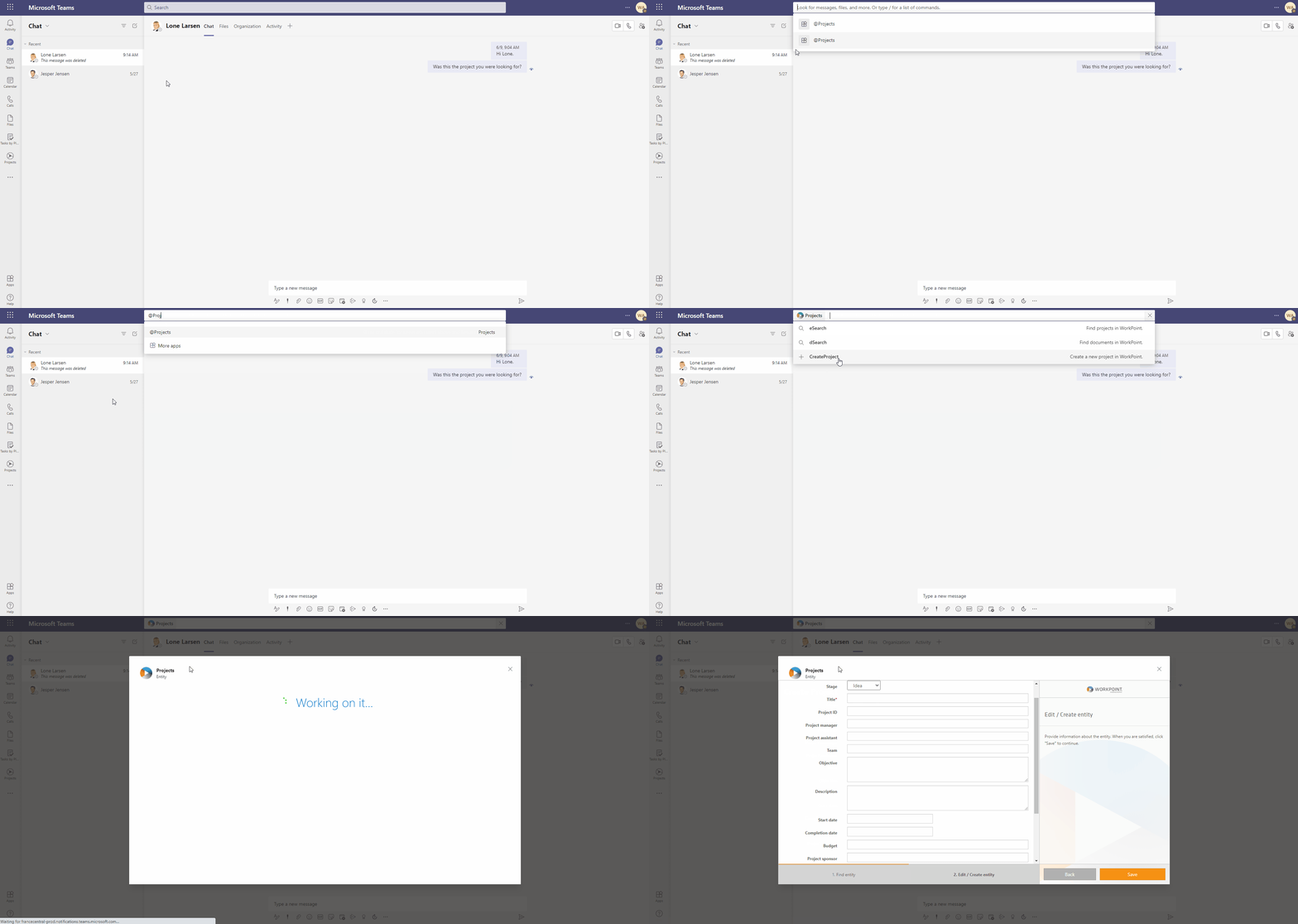
For a larger picture, please right-click the GIF and select "Open image in new tab".
2.2. Chat message
Message extension commands can be run from the chat message box. This is the box in where you type chat messages in Microsoft Teams Chat:

Running a command from the chat message box is exemplified in the following GIF where we search for a project and send a project presentation card in the chat to a colleague:
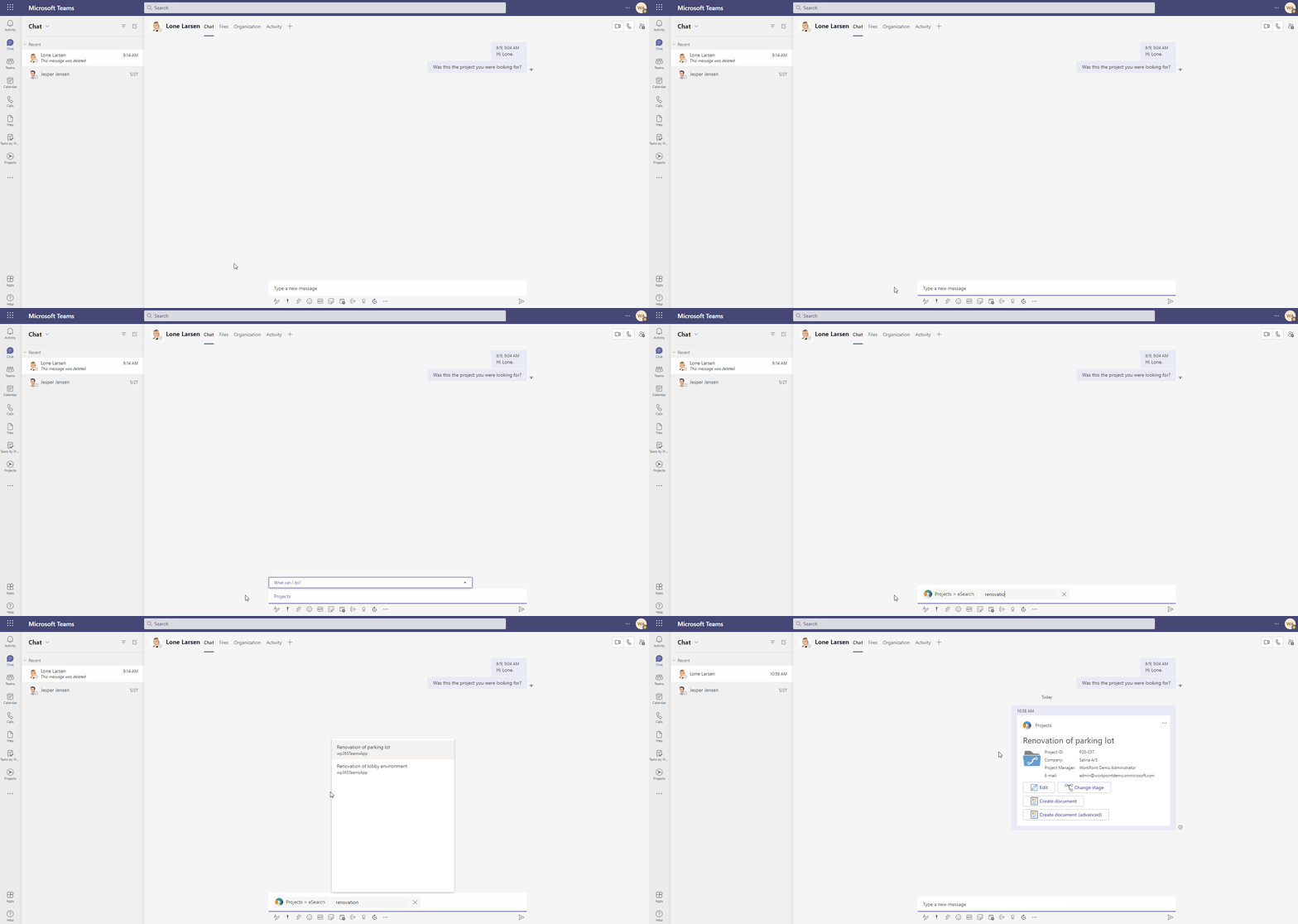
For a larger picture, please right-click the GIF and select "Open image in new tab".
2.3. Compose box
Message extension commands can be run from the compose box in Microsoft Teams Chat. This is the bar underneath the chat message box:

In the first example, we will run a command which searches for documents in WorkPoint and send a card for the document in a chat message to a colleague:
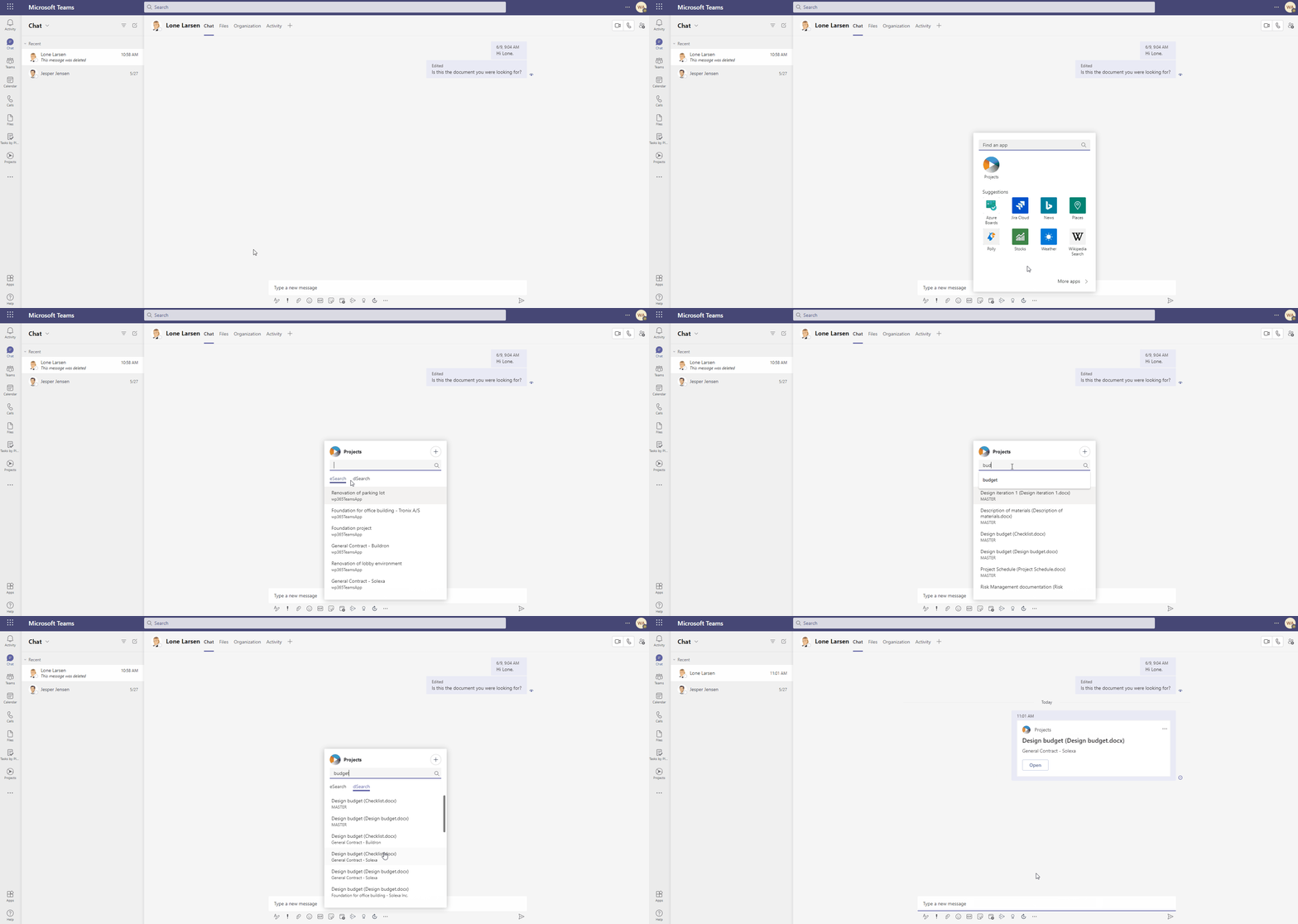
For a larger picture, please right-click the GIF and select "Open image in new tab".
In the next example, we run a command which opens a wizard to create new projects in WorkPoint from the compose box:
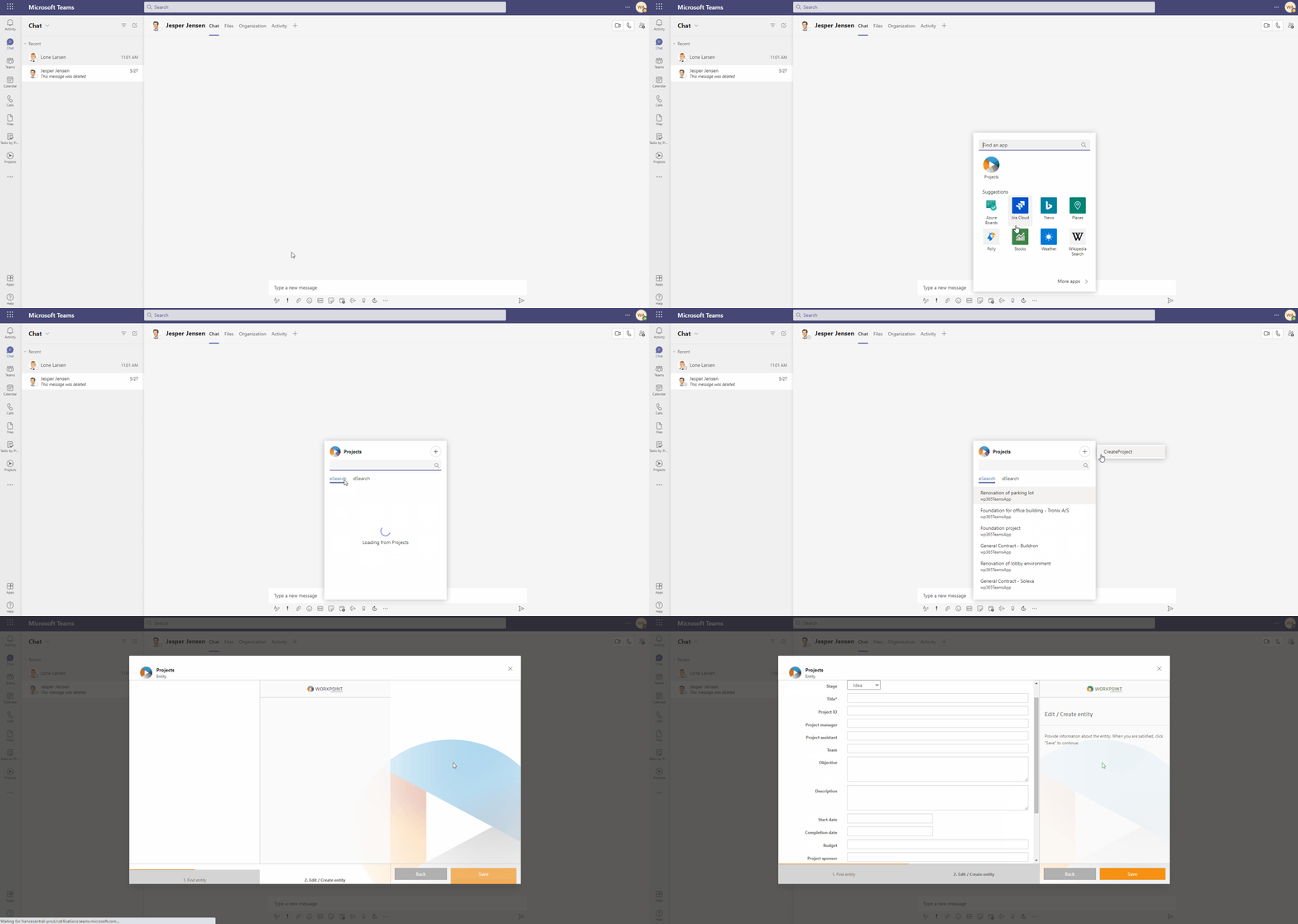
For a larger picture, please right-click the GIF and select "Open image in new tab".
3. Known limitations
Note that if you have multiple WorkPoint Apps for Teams installed in your Microsoft Teams interface, Microsoft Teams will suggest extension commands from all WorkPoint Apps installed. This may result in you seeing commands related to other apps than the one you intent to run a command for in suggestions, as illustrated in the following image:

Here, only the "CreateProject" is actually a command set up for the "Projects" app I'm trying to run a command from. The others are set up for a completely different WorkPoint app installed.
This is a known Microsoft issue, which WorkPoint unfortunately has no control over. This issue has been reported to Microsoft.
Comments
0 comments
Please sign in to leave a comment.